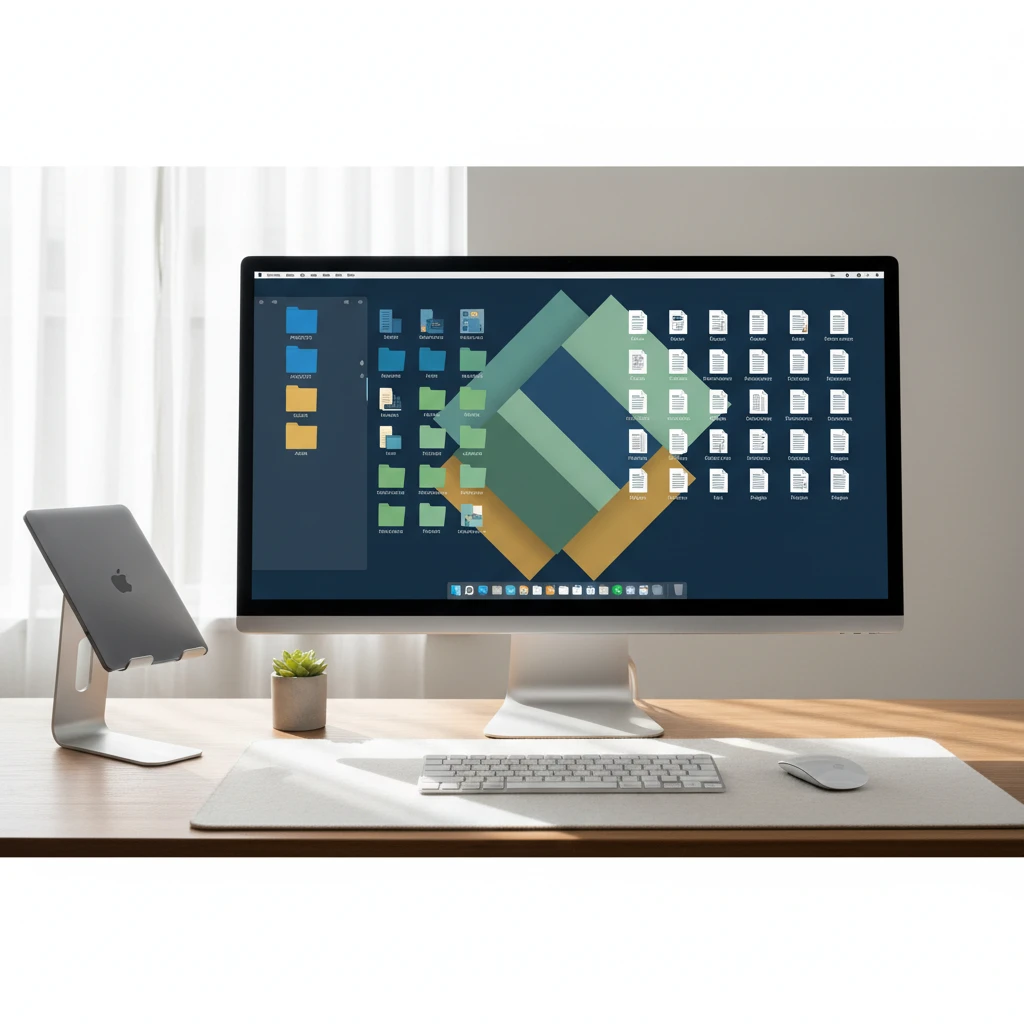
Open your computer and look at the desktop. If it is covered in screenshots, half-finished documents, downloads, and files named final_v3_REAL.docx, you are losing time every day. Studies of knowledge workers consistently show that people spend a surprising share of their week searching for information. A cluttered desktop is one of the easiest sources of that waste to fix. This guide shows you how to organize desktop files for better productivity, with a system you can set up in under an hour and maintain in minutes.
Why a Cluttered Desktop Hurts Productivity
The desktop feels convenient because everything is right in front of you. In practice, it becomes a dumping ground. Here is what that costs you:
- Slower file retrieval: When fifty icons compete for attention, finding the right one takes longer than opening a well-named folder.
- Constant visual distraction: Every icon is an unfinished task or a decision you postponed. Your brain registers them even when you are not consciously looking.
- Higher risk of loss: Files left on the desktop are often not covered by backup or sync rules, and they are easy to delete by accident.
- Slower computer performance: On some systems, a large number of desktop items and thumbnails can slow down login and screen refresh.
- Stress and poor focus: A messy digital workspace creates the same mental drag as a messy physical desk.
Step 1: Do a One-Time Desktop Cleanup
Start with a focused cleanup session. Set a timer for 30 to 45 minutes and avoid perfectionism. The goal is to get to a clean starting point.
Create a temporary holding folder
Make a folder called Desktop Cleanup and drag everything into it. Your desktop is now empty. Then work through that folder in small batches rather than facing the whole pile at once.
Sort with the keep, move, delete rule
For each file, make one of three decisions:
- Delete it if it is a duplicate, an outdated draft, an installer you no longer need, or a random screenshot with no value.
- Move it to its permanent home if it belongs to a project, client, or category.
- Keep it temporarily only if you will actively use it today or this week.
Most people find that more than half their desktop files can be deleted or archived without a second thought.
Step 2: Build a Simple Folder Structure
The best folder system is the one you will actually use. Avoid deep nesting with five or six levels. Two to three levels are enough for nearly everyone.
Choose a top-level structure
Inside your Documents folder (or a cloud drive), create a few broad categories that match how you work. For example:
- 01_Projects for active work with deadlines
- 02_Areas for ongoing responsibilities such as finance, health, or admin
- 03_Resources for reference material, templates, and research
- 04_Archive for completed or inactive items
This approach is adapted from the popular PARA method. Numbering the folders keeps them in a logical order instead of alphabetical chaos.
Organize by project, not by file type
Folders such as Word Documents or PDFs sound tidy but make work harder, because a single project is scattered across many places. Group files by what they are for. A folder named Website Redesign 2025 should hold its documents, images, and spreadsheets together.
Step 3: Use Consistent File Naming
A good folder system fails without clear names. Adopt a simple convention and stick with it.
- Start with the date in year-month-day format (2025-03-14) so files sort chronologically.
- Add the project or client name after the date.
- Describe the content in a few words.
- Use version numbers such as v01 and v02 instead of words like final or latest.
- Avoid spaces and special characters when possible. Use hyphens or underscores.
An example of a clear name: 2025-03-14_AcmeCorp_Proposal_v02.pdf. Anyone, including you six months from now, can understand it at a glance.
Step 4: Decide What Is Allowed on the Desktop
You do not have to keep the desktop completely empty, but give it a clear purpose. Treat it as a temporary workbench, not storage.
Good uses for the desktop
- Files you are actively working on today
- A single folder named To Sort for quick drops
- Shortcuts to the two or three folders you open most often
Limit it with a hard rule
Set a cap, such as no more than ten items. When you hit the limit, it is time to file something. A firm rule removes the need to decide each time.
Step 5: Tame Your Downloads and Screenshots
Much desktop clutter comes from two sources: browser downloads and screenshots. Fix them at the source.
- Change the default download location to a Downloads folder instead of the desktop, and clear that folder weekly.
- Change the screenshot save location to a dedicated Screenshots folder. Both Windows and macOS let you do this in settings.
- Use automation: Tools such as Hazel on macOS or File Explorer rules and scripts on Windows can sort files into folders by type or date automatically.
Step 6: Use Search, Tags, and Cloud Sync Wisely
Modern operating systems have fast search, so you do not need to bury every file under a perfect hierarchy. Combine a clean structure with these tools:
- Tags and colors: Mark files as urgent, waiting, or review to find them across folders.
- Cloud storage: Keep your main folders in OneDrive, Google Drive, iCloud, or Dropbox so they are backed up and available on every device.
- Favorites and Quick Access: Pin your active project folders to the sidebar for one-click access.
Step 7: Build a Weekly Maintenance Habit
A system only works if you maintain it. Schedule a five-minute reset at the end of each week, ideally on Friday afternoon.
- Empty the To Sort folder and the Downloads folder.
- Move finished projects to the archive.
- Delete duplicates and obsolete drafts.
- Empty the recycle bin or trash.
Once a quarter, spend 15 minutes reviewing the archive and verifying that your backups are working.
Common Mistakes to Avoid
- Over-engineering the system: Dozens of tiny folders slow you down. Keep it simple.
- Skipping the naming convention: Folders alone will not save you from confusing file names.
- Relying on the desktop as a to-do list: Use a task manager for tasks and keep files in folders.
- Neglecting backups: An organized drive is still vulnerable. Follow the 3-2-1 rule: three copies, two types of storage, one offsite.
The Benefits You Can Expect
After a week or two with your new system, you will likely notice that files are easier to find, your start-of-day routine is smoother, and your screen feels calmer. Sharing files with colleagues also becomes simpler because your folders and names make sense to others. These small gains add up to hours saved every month.
Final Thoughts
Organizing desktop files is not about creating a perfect digital filing cabinet. It is about removing friction between you and your work. Clear the desktop, build a simple folder structure, name files consistently, automate what you can, and review weekly. Start today with a single cleanup session, and your future self will thank you every time you find the right file in seconds.
Deixe um comentário