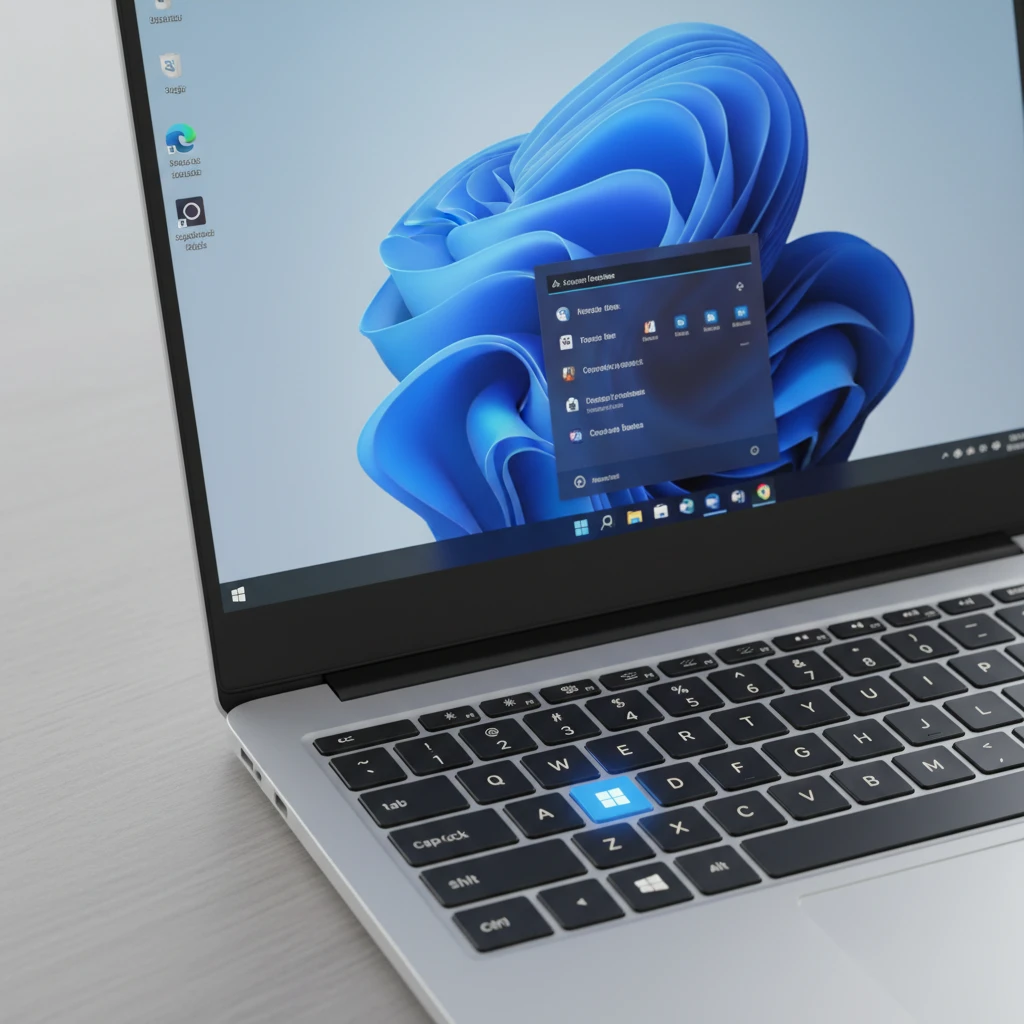
Keyboard shortcuts are the quickest way to speed up your work in Windows 11. A few seconds saved on each click adds up to hours over a month. This guide covers the essential Windows 11 keyboard shortcuts, grouped by task, so you can find what you need and start using it right away.
Why Learn Windows 11 Keyboard Shortcuts?
Reaching for the mouse breaks your flow. Shortcuts let you open apps, manage windows, capture the screen and search your PC without leaving the keyboard. They also help with accessibility and make laptop use easier when a trackpad is awkward.
Basic Editing and General Shortcuts
These classics work in almost every Windows app and are the foundation of fast computing.
- Ctrl + C: copy the selected item
- Ctrl + X: cut the selected item
- Ctrl + V: paste
- Ctrl + Z: undo the last action
- Ctrl + Y: redo an undone action
- Ctrl + A: select everything
- Ctrl + S: save the current file
- Ctrl + P: print
- Ctrl + F: find text in the current window or page
- Ctrl + Shift + V: paste as plain text in many apps and browsers
- F2: rename the selected file or folder
- F5: refresh the current window
Essential Windows Key Shortcuts
The Windows key opens the door to the most powerful system-level commands.
- Windows: open or close the Start menu
- Win + D: show or hide the desktop
- Win + E: open File Explorer
- Win + I: open Settings
- Win + L: lock your PC
- Win + R: open the Run dialog
- Win + X: open the Quick Link (power user) menu
- Win + S: open Search
- Win + A: open Quick Settings
- Win + N: open the notification center and calendar
- Win + W: open Widgets
- Win + P: choose a presentation or second screen mode
- Win + K: open the Cast panel
- Win + U: open Accessibility settings
- Win + Pause: view system information
Window Management and Snap Shortcuts
Windows 11 improved multitasking with Snap Layouts. These shortcuts help you arrange windows in seconds.
Snapping and Moving Windows
- Win + Z: open the Snap Layouts menu
- Win + Left Arrow / Right Arrow: snap the active window to the left or right half
- Win + Up Arrow: maximize the window
- Win + Down Arrow: restore or minimize the window
- Win + Shift + Left / Right Arrow: move a window to another monitor
- Win + Home: minimize everything except the active window
- Win + M: minimize all windows
Switching Between Apps
- Alt + Tab: switch between open apps
- Ctrl + Alt + Tab: keep the app switcher on screen until you choose
- Win + Tab: open Task View
- Alt + F4: close the active window or app
- Win + 1 to 9: open or switch to the app pinned in that taskbar position
- Win + T: cycle through taskbar apps
Virtual Desktop Shortcuts
Virtual desktops keep work, personal projects and communication apps separate. The shortcuts below make them easy to manage.
- Win + Ctrl + D: create a new virtual desktop
- Win + Ctrl + Left / Right Arrow: switch between virtual desktops
- Win + Ctrl + F4: close the current virtual desktop
Screenshot and Screen Recording Shortcuts
- Print Screen: open the Snipping Tool (when enabled in settings) or capture the screen to the clipboard
- Win + Shift + S: open the snipping overlay to capture a region, window or full screen
- Win + Print Screen: save a full-screen screenshot to the Pictures > Screenshots folder
- Win + Alt + Print Screen: capture the active game or app window with Xbox Game Bar
- Win + Alt + R: start or stop recording with Xbox Game Bar
- Win + G: open Xbox Game Bar
Clipboard, Emoji and Voice Shortcuts
- Win + V: open Clipboard History, so you can paste items you copied earlier (turn it on the first time you use it)
- Win + Period (.) or Semicolon (;): open the emoji panel, GIFs and symbols
- Win + H: start voice typing
File Explorer Shortcuts
If you manage many files, these shortcuts will save you a lot of clicking.
- Ctrl + Shift + N: create a new folder
- Alt + D or Ctrl + L: jump to the address bar
- Ctrl + E or Ctrl + F: jump to the search box
- Alt + Left Arrow: go back
- Alt + Right Arrow: go forward
- Alt + Up Arrow: go up one folder level
- Alt + Enter: open properties for the selected item
- Shift + Delete: delete an item permanently, skipping the Recycle Bin
- Ctrl + Mouse Wheel: change the icon size
- Ctrl + N: open a new File Explorer window
- Ctrl + T: open a new tab in File Explorer (Windows 11 22H2 and later)
System, Security and Troubleshooting Shortcuts
- Ctrl + Shift + Esc: open Task Manager directly
- Ctrl + Alt + Delete: open the security screen with lock, switch user, sign out and Task Manager
- Win + Ctrl + Shift + B: refresh the graphics driver if the screen is black or frozen
- Win + Ctrl + Enter: turn Narrator on or off
- Win + Plus (+): open Magnifier and zoom in
- Win + Esc: close Magnifier
Tips for Learning Shortcuts Faster
- Start small. Pick three or four shortcuts that match your daily tasks and use them for a week.
- Write a cheat sheet. Keep a sticky note near your monitor until the combinations become habit.
- Group by task. Learn window management first, then screenshots, then File Explorer.
- Check app-specific shortcuts. Browsers, Microsoft Office and code editors each add their own, which often follow the same Ctrl-based patterns.
Frequently Asked Questions
Can I customize keyboard shortcuts in Windows 11?
Windows does not offer a built-in panel to rebind system shortcuts. You can, however, create shortcuts to apps by right-clicking a desktop shortcut, opening Properties and assigning a key combination. Microsoft PowerToys also includes a Keyboard Manager for remapping keys and shortcuts.
Why is a Windows shortcut not working?
Some laptops require you to hold the Fn key for function keys, and certain shortcuts only work after a feature is enabled, such as Clipboard History. Restarting File Explorer or checking that Game Mode and Game Bar are enabled can also help.
Which shortcut should I learn first?
Most people benefit immediately from Win + V, Win + Shift + S and Win + Arrow keys. They cover clipboard management, screenshots and window arrangement, three tasks you probably do every day.
Final Thoughts
You do not need to memorize every shortcut to become more productive. Choose the ones that fit your workflow, practice them until they feel natural, and add new ones over time. Within a few weeks, Windows 11 will feel faster and far more comfortable to use.
Deixe um comentário