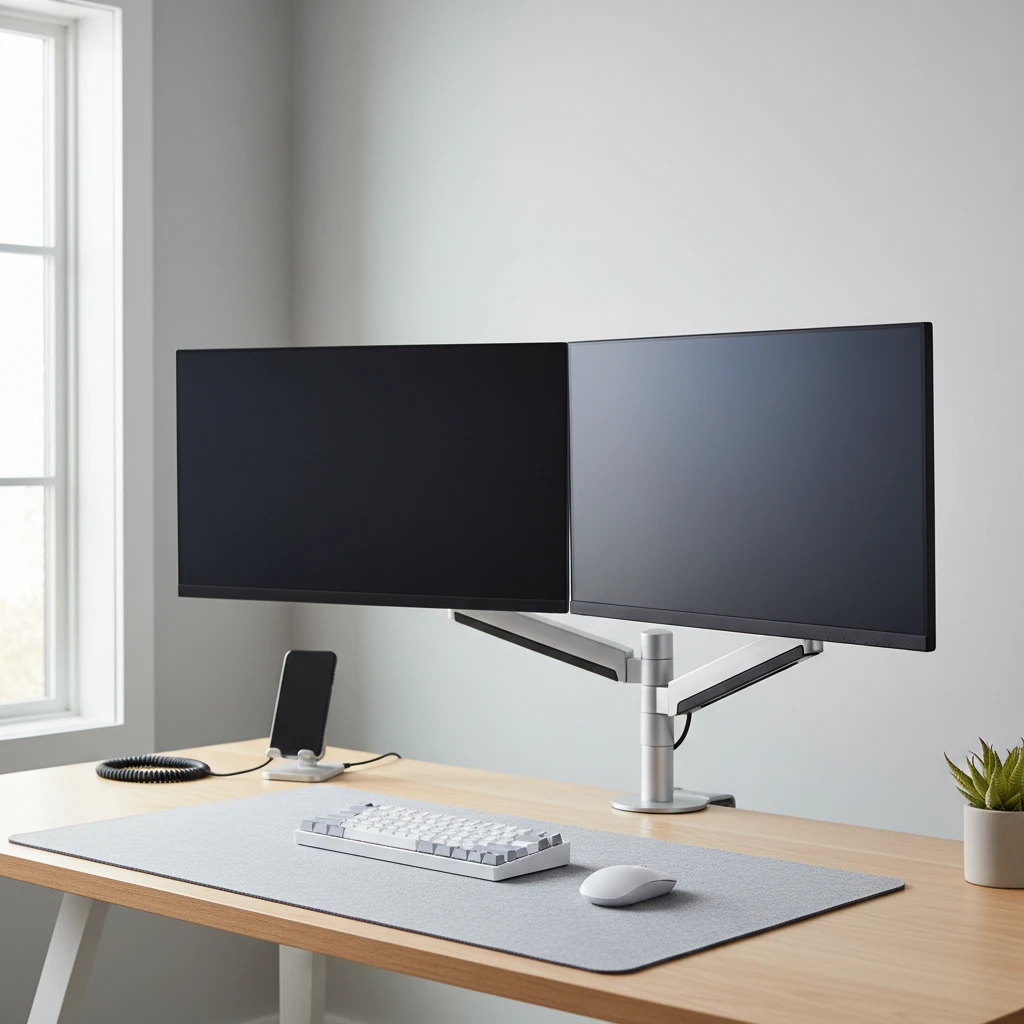
Working from home gives you the freedom to build a desk that fits the way you work. One of the most effective upgrades is a second screen. A well-planned dual monitor setup lets you keep a document open beside your research, run a video call without hiding your work, and stop juggling tabs all day. But two screens placed badly can cause neck pain, eye strain and a cluttered desk. These dual monitor setup tips for a home office will help you get it right the first time.
Why a Dual Monitor Setup Is Worth It
Studies from software and hardware vendors have repeatedly reported productivity gains of roughly 20 to 40 percent for multi-screen users on tasks such as data entry, writing, coding and design. Exact numbers vary, but the reason is simple: less switching between windows means less lost focus. Common benefits include:
- Less window shuffling: keep reference material on one screen and your main task on the other.
- Better communication: leave chat, email or a video meeting visible while you work.
- Easier comparison: review two files, spreadsheets or design versions side by side.
- Cleaner workflow: dedicate one screen to active work and one to monitoring.
Step 1: Choose the Right Monitors
Match size, resolution and panel type
Ideally, buy two identical monitors. Matching size, resolution, color temperature and bezel thickness makes the pair feel like one continuous workspace. If you are using a mix, try to at least match the height of the screens and the resolution scaling so windows do not change size when you drag them across.
- Size: 24 to 27 inches is the sweet spot for most desks. Go smaller if your desk is shallow.
- Resolution: 1080p works at 24 inches, while 1440p is a clear upgrade at 27 inches. 4K is excellent for design and text clarity but needs a capable computer.
- Panel type: IPS panels offer better color and viewing angles, which matters when you sit close or angle screens inward.
- Bezels: thin bezels reduce the visual gap in the middle of your setup.
Consider a primary and a secondary screen
Not everyone needs two equal monitors. Some people prefer a large primary display with a smaller secondary monitor, often in portrait mode, for chat, email or code. This can save desk space and money, as long as you are comfortable with the difference in size.
Step 2: Get the Ergonomics Right
Ergonomics is the most overlooked part of a dual monitor setup. A few small adjustments prevent neck and shoulder pain over long workdays.
- Height: the top edge of the screen should sit at or slightly below eye level. Your eyes should look slightly downward at the center of the screen.
- Distance: sit about an arm’s length away, roughly 20 to 30 inches, and adjust for screen size.
- Angle: tilt the screens back by 10 to 20 degrees to reduce glare and keep your neck neutral.
- Alignment: make sure both monitors sit at the same height so your head does not bob up and down.
Symmetrical or asymmetrical layout?
If you use both screens equally, center the seam between the two monitors directly in front of you and angle each one inward slightly, forming a gentle V. If one screen is your main display, place it directly in front of you and set the second to the side at a slight angle. This stops you from twisting your neck all day to face your primary work.
Step 3: Use Monitor Arms and Save Desk Space
The stands that come with most monitors are bulky and limit adjustment. A dual monitor arm or a desk-mounted stand frees up surface area, lets you fine-tune height and depth, and makes it easy to rotate a screen into portrait mode. Check these points before buying:
- VESA compatibility (usually 75×75 or 100×100 mm) on both monitors.
- Weight capacity of the arm compared with your screens.
- Your desk thickness and whether it supports a clamp or grommet mount.
- Smooth, easy adjustment so you can reposition screens for different tasks.
Step 4: Check Your Ports and Cables
Before you buy a second monitor, confirm that your computer can drive it. Look at the available video outputs: HDMI, DisplayPort, USB-C or Thunderbolt. Laptops often support two external screens through a docking station or a USB-C hub, though some, including certain entry-level models, may only support one extra display. Check your device’s specifications first.
- Docking station: a single cable connects the laptop to both monitors, power, keyboard and network, making it easy to plug in and unplug.
- Refresh rate: use quality cables so you get the full resolution and refresh rate your monitors support.
- Graphics capability: two 4K screens need a more capable graphics chip than two 1080p screens.
Step 5: Configure Your Display Settings
Once everything is connected, spend a few minutes in your operating system’s display settings.
- Arrange displays: drag the on-screen monitor icons to match the physical position of your screens so the mouse moves naturally between them.
- Set the primary display: choose the screen where your taskbar, menu bar and new windows should appear.
- Match scaling: use similar scaling and resolution so text stays the same size across both screens.
- Calibrate color: adjust brightness, contrast and color temperature so the two displays look alike.
- Enable night mode: reduce blue light in the evening on both screens.
Step 6: Use Software to Work Faster
Built-in tools and free utilities make a second screen far more useful.
- Window snapping: use keyboard shortcuts to snap windows to halves or corners of each monitor.
- Virtual desktops: separate projects or contexts, such as work and personal, without cluttering your screens.
- Window management tools: utilities such as PowerToys on Windows or Rectangle on macOS give you custom layouts and quick moves between screens.
- Taskbar settings: show taskbar buttons only on the monitor where a window is open to reduce clutter.
- Different wallpapers: use a distinct or dark wallpaper to make it easier to spot your cursor and desktop icons.
Step 7: Plan Your Screen Layout
Decide what lives where, and keep it consistent. A routine reduces mental effort.
- Primary screen: your main task, such as a document, code editor, design file or spreadsheet.
- Secondary screen: reference material, browser, calendar, email, chat or video meeting.
- Video calls: place the meeting window on the screen closest to your webcam so you look at the camera naturally.
- Portrait mode: consider rotating one screen for long documents, web pages, code or social feeds.
Step 8: Keep Your Desk Tidy with Cable Management
Two monitors mean more cables. Use cable trays under the desk, adhesive clips, Velcro ties or a cable sleeve to bundle power and video cords. Run cables through the monitor arm channels if available. A power strip mounted under the desk keeps plugs off the floor and makes your setup look clean and professional, which is especially valuable if your workspace is visible during video calls.
Step 9: Protect Your Eyes and Posture
More screen space can tempt you to stay at your desk longer. Build in healthy habits:
- Follow the 20-20-20 rule: every 20 minutes, look at something 20 feet away for 20 seconds.
- Keep your room lighting balanced and avoid placing screens directly in front of a window.
- Use an anti-glare setting or a matte screen where needed.
- Stand up, stretch and change positions regularly. A sit-stand desk pairs well with monitor arms.
Common Dual Monitor Mistakes to Avoid
- Buying monitors with very different sizes or resolutions without adjusting scaling.
- Placing one screen far off to the side, which forces constant neck twisting.
- Leaving monitors too low because of the default stand.
- Ignoring cable and port compatibility until the monitors arrive.
- Skipping display calibration, which leaves colors mismatched between screens.
Quick Dual Monitor Setup Checklist
- Confirm your computer supports two external displays.
- Choose matching monitors or a clear primary and secondary combination.
- Mount screens on arms at eye level with a slight tilt.
- Position the main screen directly in front of you.
- Arrange displays in settings and match scaling and color.
- Learn window snapping shortcuts and set up a layout routine.
- Tidy cables and set up good lighting.
- Take regular breaks to protect your eyes and body.
Final Thoughts
A dual monitor setup is one of the most cost-effective ways to improve a home office. The best results come from thoughtful choices: matching screens, ergonomic placement, reliable connections and smart software settings. Start with the basics, adjust as you work, and refine your layout over a few weeks. Soon your second screen will feel like an essential part of your workflow rather than an extra piece of hardware.
Deixe um comentário